Tech · 8 min read
Windows Key Not Working? Check If It's the Key or Windows First
I read 55 real reports from the last two years, one after another, and almost every confirmed fix was a hidden lock or a Windows repair, not a new keyboard.
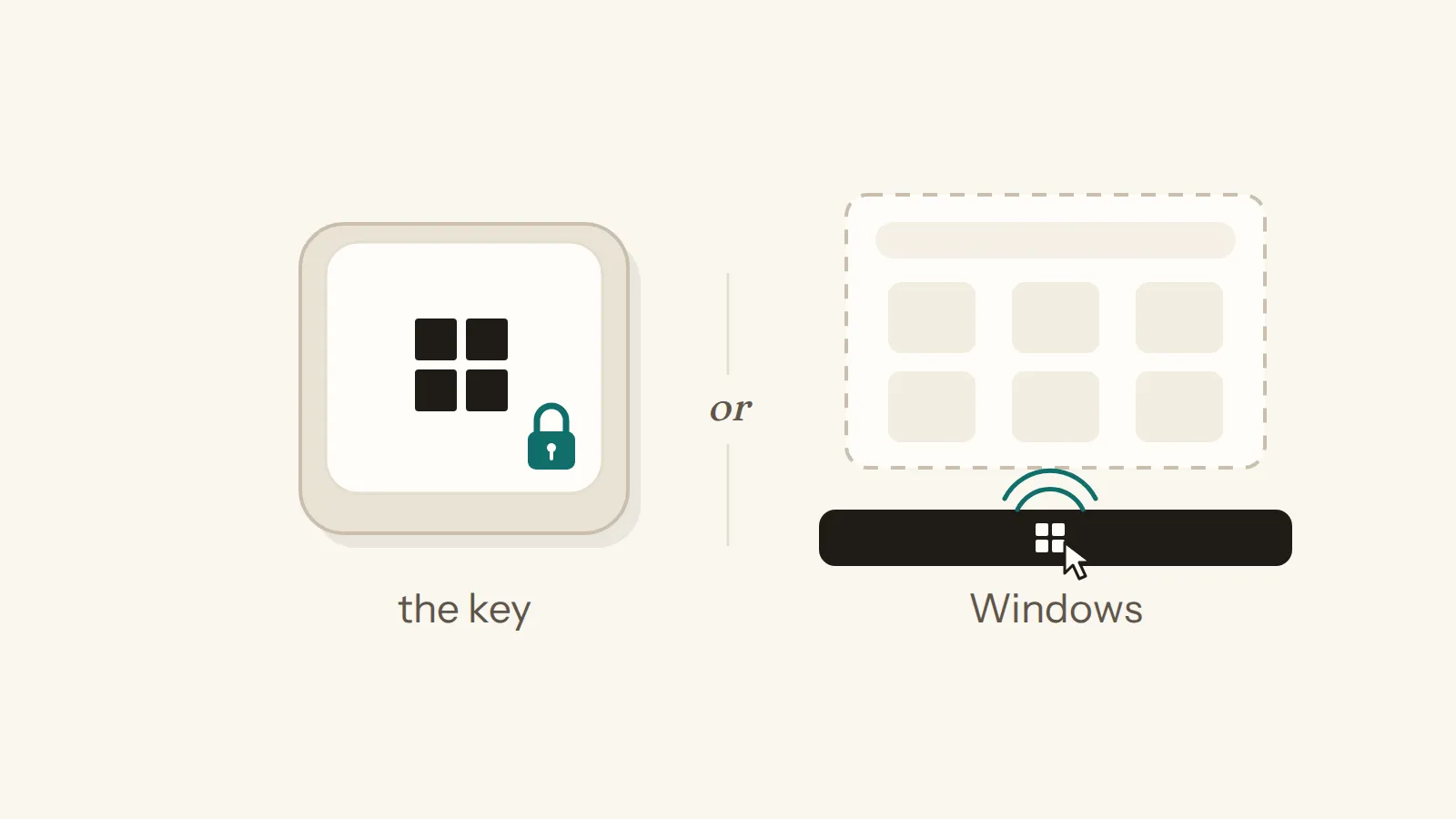
In short: If only the Windows key is dead, look for a lock: Fn + Windows, F12 on some HP laptops, or a setting in your laptop maker's app. If the Start menu, search and Settings are dead too, Windows itself needs a repair, and in the reports with a confirmed fix, System Restore or an in-place repair worked.
If you press the Windows key and nothing happens, you've probably tried a fix list or two already, and maybe the key is still dead. So before you try anything else, check one thing: is it only the key, or has Windows itself stopped responding? Think of the Windows key as a doorbell: when you press it and nothing rings, either someone switched the bell off, or nobody's home, and the first check below tells you which. I read 55 real reports from the last two years on Microsoft's Q&A forum and on Super User, and in 22 of them the key wasn't the only thing broken, because the Start menu, search or Settings had stopped too.
And when it really was just the key, the answer was usually a lock that's easy to miss. Of the 7 reports where only the key failed and someone confirmed what worked, 6 were a lock or a switch on the laptop or keyboard, not a broken key. Most people never got that far, though, because 41 of the 55 threads end without a confirmed fix.
This is about the Windows key on your keyboard. If you mean the Windows product key, the one that activates Windows, that's a different problem with its own fixes.
First check: is it the key, or is Windows broken?
So how do you tell which one you have? Click the Start button with your mouse first, and if Start doesn't open that way either, jump to the part about repairing Windows below, because no keyboard trick will bring it back.
If Start opens with the mouse, try the Windows key on the on-screen keyboard, which you can open without the Windows key. Go to Start, then Settings > Accessibility > Keyboard, and turn on the On-Screen Keyboard toggle, as Microsoft's own guide shows. And if you're stuck at the sign-in screen, there's an Accessibility button in its lower-right corner with the same keyboard.
Now press the Windows key on that screen keyboard. An advisor on Microsoft's forum, in an answer more than 100 people found helpful, explains the logic: if the on-screen Windows key opens Start, Windows is fine and the problem sits with your keyboard, and if it doesn't, that points to Windows.
If you use a separate keyboard, there's one more quick test, because Microsoft's advice for a keyboard that doesn't seem to work at all is to plug it into another PC and see if it works there.
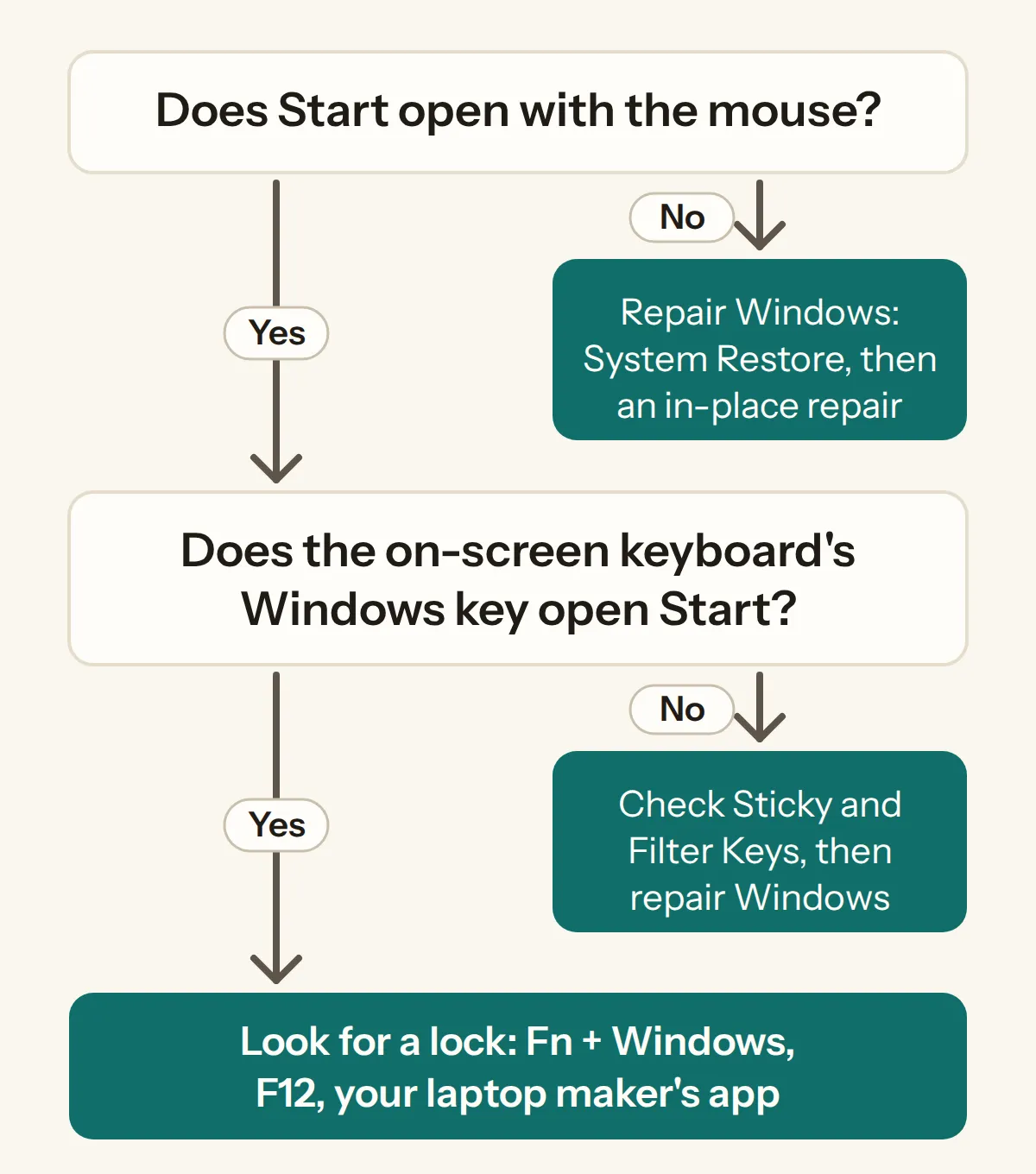
If only the key is dead, look for a lock first
This is the switched-off bell, and the switch is usually a key combination or a setting in an app. When only the key is dead, the confirmed fixes in my count were almost all locks, and every maker does it a little differently, so try these in order, starting with the one that matches your laptop.
Fn + Windows comes first. On one ASUS laptop every Windows-key shortcut just typed the letter, until the owner noticed a little padlock printed on the Windows key, held Fn + Windows and got it back, and that answer on Super User has 33 votes. An advisor gave the same tip for an ASUS TUF Gaming F15, and on an Acer Predator, pressing Fn and the Windows key together was what worked.
On some HP laptops it's F12. One HP owner had pressed F12 by mistake, and on their laptop that one key also locks the Windows key, which is a lot of power for one small key. The advisor's list to try was F12, Fn + F12, F11 and Fn + F11.
Then check your laptop maker's app. On an Acer, Fn + Windows didn't help at all, because the Windows key had been switched off in Acer's NitroSense app, and turning it back on there solved it. For Acer Predator laptops an advisor pointed to a similar setting in PredatorSense, and on the ASUS TUF the advisor said the MyAsus app might have one too.
And sometimes it's just the Fn key, like for the person who found after an update that they had to hold Fn while pressing the Windows key.
If you have an ASUS laptop, the MyASUS app also has its own keyboard test, under System Diagnosis and then Keyboard, although the ASUS pages I read don't describe a Windows-key lock.
If Start, search and Settings are dead too, repair Windows
This is the nobody's-home case: the bell is fine, but there's no one inside to answer, because Start, search and Settings are all out. You'll know it's this one when Start won't open even with the mouse. That was the case in 22 of the 55 reports, and one forum answer from March 2026 says this problem "is reported lately and may be caused by a Windows Update".
In this group, all 4 confirmed fixes repaired Windows itself, and there are two ways to do it, starting with the lighter one.
System Restore takes Windows back to a restore point. Microsoft says you can run it while you're signed in, from Control Panel > Recovery > Open System Restore, so you don't need the Windows key, or from the Windows Recovery Environment if you can't get that far. It was the fix once in my count.
An in-place repair reinstalls Windows over itself, and Microsoft says it works "without affecting your personal files, settings, or installed applications". You run setup.exe from the Windows installation media, choose "Change what to keep" and pick "Keep personal files and apps", as Microsoft's reinstall guide walks through. It was the accepted answer 3 times in my count, and one advisor put it plainly: "The best option is to perform an in-place repair".
It's the bigger step of the two, because you need the installation media first, so keep it for when System Restore doesn't help or there's no restore point to go back to.
Dead only in games? Games block it on purpose
If the key works on the desktop but not while a game is running, it's probably the game. That happened in 4 of the 55 reports, and the answer on the forum is plain: "almost all games on the market block the Windows key while running, to prevent accidentally pressing it and exiting the game." So close the game and try the key again before you change anything else.
Other things that switch the key off
Sticky Keys and Filter Keys can make a key feel broken, because they change how Windows reads your key presses. In Microsoft's words, Filter Keys sets the keyboard "so it can ignore brief or repeated keystrokes", and both switches are on the same page as the on-screen keyboard, Settings > Accessibility > Keyboard.
Then there are the odd ones. In 5 reports the key came and went, or did something else entirely, like opening Game Bar and voice typing instead of the Start menu. And one person says that turning off two Windows services, Windows Search and Windows Management Instrumentation, brought their key back, but that's one person's report, so treat it as their story rather than a fix to copy.
What 55 real reports show
Here's how I counted. I opened every Microsoft Q&A thread from the last two years whose title names the Windows key and a fault, which I found through the forum's own sitemap, and the Super User questions about it, asked from 9 October 2024 to 16 September 2026. Then I read them, one thread, then another, and another, and after a while the same two stories kept coming back: either the key alone was dead, or the whole Start menu had gone quiet with it. I left out 18 threads that were really about the Windows product key, one shortcut, another key, search or an admin setting, and that left 55 real reports.
| What was going on | Reports | With a confirmed fix | What worked |
|---|---|---|---|
| Only the key was off | 23 | 7 | a lock or switch 6 times (Fn + Windows, F12, holding Fn, the maker's app), turning off two Windows services once |
| Start, search or Settings failed too | 22 | 4 | an in-place repair 3 times, System Restore once |
| Only while a game was running | 4 | 0 | games block the key on purpose (the forum's explanation) |
| Came and went, or did the wrong thing | 5 | 0 | none confirmed |
| Not clear from the post | 1 | 0 | none confirmed |
| All | 55 | 11 | 41 threads end without a confirmed fix |
A fix counts as confirmed when the person who asked accepted an answer or said what worked, and by that measure, 41 of the 55 threads end without one.
And some questions never got an answer at all. One Dell laptop showed the message "the Windows key is not working currently. We will fix it next time you log in", and nobody in that thread explained it. Microsoft's forum shows its own AI answer on 14 of its 53 threads, and even that couldn't tell the Dell owner what "We will fix it next time you log in" means. So if you see that message, the first check above is still the place to start.
So take these numbers as a pattern rather than an exact count, because people who solve it on their own rarely post, and many who ask never come back to say what worked. "No confirmed fix" only means none was posted in the thread.
What the usual fix lists skip
So why didn't the usual lists help? Google's AI answer for "windows key not working" goes through the Win-Lock and Game Mode keys, Sticky and Filter Keys, restarting Windows Explorer, drivers and a hardware test. It doesn't name any laptop maker's app, though, and it never sends you to repair Windows when Start is dead too.
The well-known fix pages look much the same. wikiHow's 11 steps start with "Press Windows + Fn." and end with removing a custom keyboard mapping from the registry, and How-To Geek starts by asking whether the Start menu works, which is the same first check as ours. But none of the three big pages I checked, wikiHow, How-To Geek and EaseUS, names a maker's app, and wikiHow and How-To Geek don't mention System Restore or an in-place repair at all.
Windows key not working: the order to check
Here's the whole order as a checklist you can go through right now.
Windows key not working: the order to check
8 steps
So start with the one-minute check. Most things that look broken are only switched off, and it's worth looking for the switch before you start replacing anything.
Tags: windows · keyboard · troubleshooting