Tech · 7 min read
Join Two Tables in Excel: Which Method Keeps Which Rows (Tested)
I joined the same two small tables with every method my Excel has and checked each row against SQL's own answer.
In short: To match rows on a key, Power Query's Merge kept the same rows as SQL in all six join kinds. VLOOKUP, INDEX/MATCH and XLOOKUP keep one match per row, so a key listed twice loses a row with no error. To merge sheets with the same columns, stack them instead.
Maybe you have orders on one sheet and customers on another, and you want each order to show its customer's city, the way a JOIN does it in SQL. So you search for it, and the answers name the tools, XLOOKUP, VLOOKUP and Power Query, but none of them says which rows each one keeps, and that's the part that decides whether your totals are right. That's exactly what I tested: I joined the same two small tables with every method my laptop's Excel has and checked each result, row by row, against SQL's own answer.
The short answer: Power Query's Merge kept exactly the rows SQL keeps, in all six join kinds. The lookups give one answer per order, so when a customer is listed twice, one row just disappears, with no error to warn you. And VLOOKUP without its last argument was worse, because it gave two orders the city of a customer they don't have.
| Method | Rows it kept | Same rows as SQL? | A customer listed twice | An order with no customer |
|---|---|---|---|---|
| Power Query, Merge (all six join kinds) | 5, 7, 7, 9, 2, 2 | Yes, in all six | both rows kept | left blank |
| Microsoft Query (SQL inside Excel) | 5, 7, 7, none, 2, 2 | Yes, but FULL OUTER JOIN was refused | both rows kept | left blank |
| VLOOKUP with FALSE, INDEX/MATCH | 6 | No, one row lost | first match only | #N/A |
| VLOOKUP without FALSE | 6 | No | the last match | a wrong city, no error |
| XLOOKUP (Microsoft's rule, not run here) | 6 | No | first match only | your "not found" text |
| Pasting below, Power Query's Append (VSTACK by Microsoft's rule) | 12 | Same as UNION ALL | not a join | not a join |
| Consolidate | 7, one per key | Same keys as UNION | one row per key | amounts added, names empty |
The six numbers follow the order inner, left outer, right outer, full outer, left anti and right anti. My Excel 2019 has no XLOOKUP and no VSTACK, so those two rows come from Microsoft's own description, not from my run.
And to be honest about where I stand: for combining tables, XLOOKUP has been easier and faster for me than VLOOKUP or HLOOKUP, and paired with formulas like MATCH, it works well. The test just adds one condition, which I'll come to below.
First: do you want to match rows, or stack them?
Before you pick a method, check which job you have, because people use the same words for two different things. Joining means matching: each order finds its customer by a key, like a customer ID, and the customer's details land next to the order. Stacking means putting one table under the other, January's rows and then February's, with the same columns, and Power Query keeps the two apart too, with Merge for matching on a key and Append for stacking.
And the two get mixed up all the time. In one Excel forum thread this year, someone asked to "join" two monthly tables when the result they wanted was simply February's rows under January's, and one reply still told them to merge the queries, which matches rows instead of stacking them. Even Microsoft's top result for this search answers with stacking: paste the new rows into the empty cells below your table.
But most people who ask want the matching kind, the one SQL calls a JOIN, like the asker of a Super User question with over 400,000 views, so that's where most of this article goes.
The test: two small tables with every tricky case
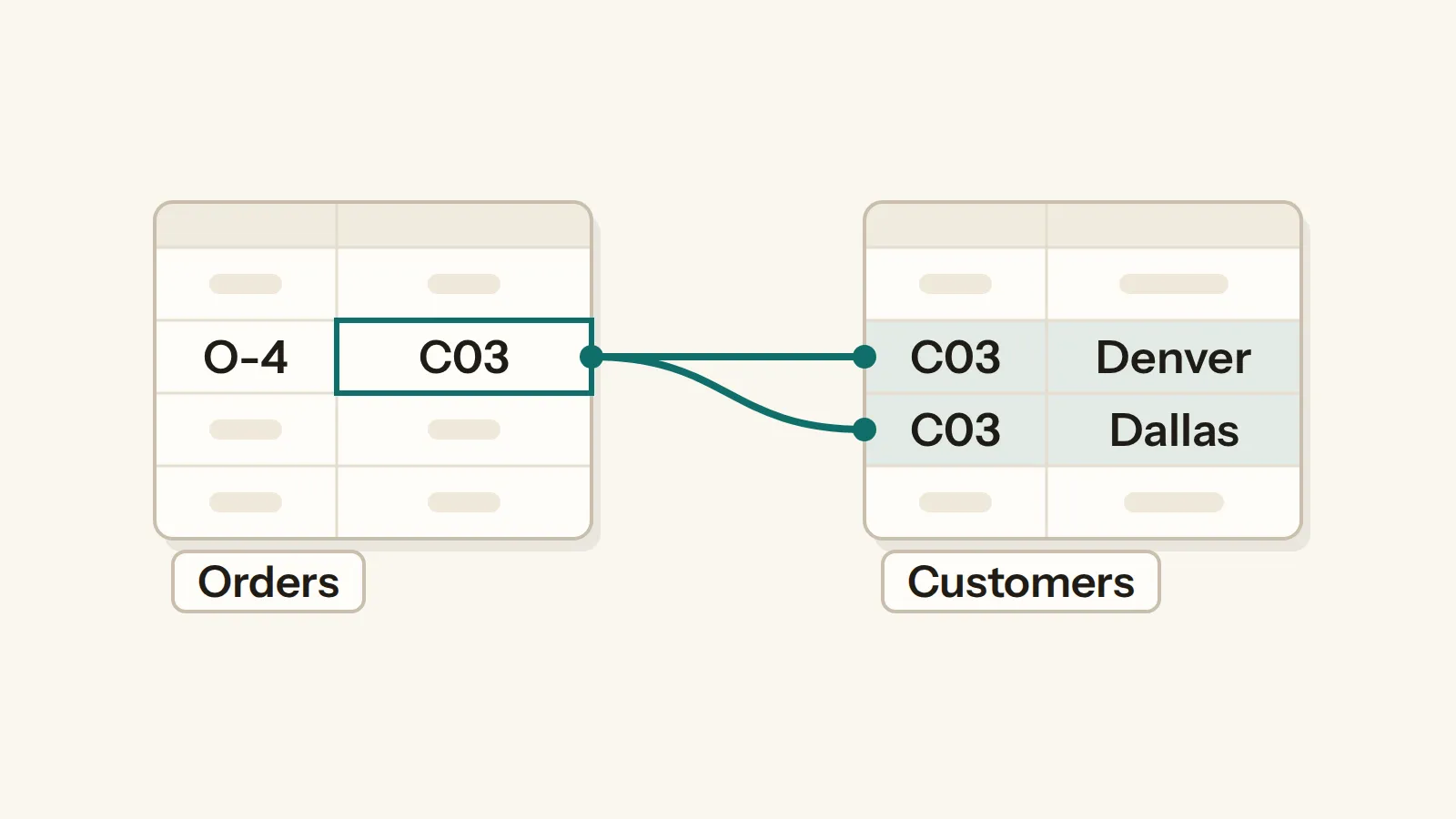
So I built the smallest test I could think of that still has every case that makes a join tricky. There are six orders and six customers: customer C01 has two orders, customer C03 is listed twice (once in Denver, once in Dallas), orders O-5 and O-6 point to customers that don't exist, and customers C04 and C07 have no orders at all.
| Order | Customer | Amount |
|---|---|---|
| O-1 | C01 | 20 |
| O-2 | C01 | 35 |
| O-3 | C02 | 15 |
| O-4 | C03 | 40 |
| O-5 | C05 | 25 |
| O-6 | C06 | 10 |
| Customer | Name | City |
|---|---|---|
| C01 | Asha | Austin |
| C02 | Ben | Boston |
| C03 | Chen | Denver |
| C03 | Chen | Dallas |
| C04 | Dana | Detroit |
| C07 | Eli | El Paso |
You can download the same workbook and run each method on it yourself.
Then I ran the same joins in SQLite, so every Excel result had a correct answer to be checked against, and a script did the checking, so nothing was counted by eye. I also added Microsoft Query, which runs real SQL inside Excel, because it's the top answer on Super User while Google's first page never mentions it.
One thing about my setup matters here: the Excel on my laptop is Office Home & Student 2019, and in it XLOOKUP and VSTACK simply don't exist, so both show #NAME?.
Lookups: one match per row (VLOOKUP, INDEX/MATCH, XLOOKUP)
A lookup gives each order exactly one answer, and that's both why it's easy and where it goes wrong. With VLOOKUP and FALSE as its last argument, five orders got a city or #N/A just as you'd expect, but order O-4, whose customer is listed twice, got only Denver. Dallas was simply gone, so the result had 6 rows where SQL's LEFT JOIN has 7, and INDEX with MATCH did exactly the same.
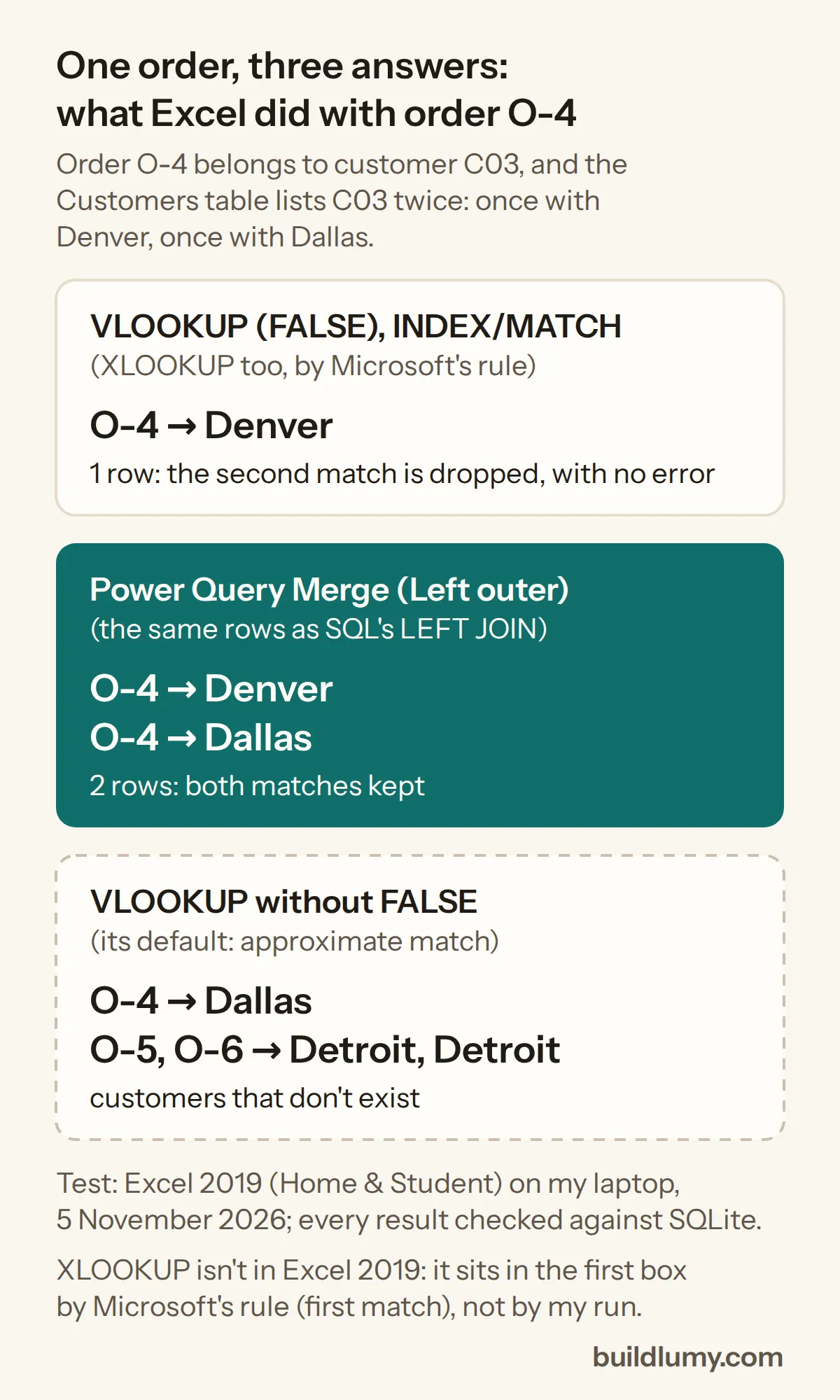
XLOOKUP follows the same rule. Microsoft's XLOOKUP page says it "returns the item corresponding to the first match it finds", and it also says XLOOKUP isn't available in Excel 2016 or Excel 2019. So the easier formula still keeps one match per row, which is perfect when every key appears once and quietly wrong when a key repeats.
And it isn't a rare problem. A question about getting VLOOKUP to return more than one match has had hundreds of thousands of views on Super User, but none of the 13 answers to three Super User join questions even mentions a key listed twice. Two video tutorials on Google's first page skip it as well: they show XLOOKUP on Excel 365, VLOOKUP for older versions and Power Query's default join, and neither shows what happens when a key repeats.
Power Query's Merge: the same rows as SQL in all six join kinds
If you want a real join, Power Query is the one. Its Merge gave exactly SQL's rows in all six join kinds, and order O-4 came out twice, once with each C03 row, just the way SQL returns it.
That second row surprises people. In an Excel forum thread from April, someone merged two tables, found duplicated rows, and was told that a key matching two rows gives two rows. That's not a bug, because it's what a join does, and it's exactly the row the lookups lose.
Here's how to get there, following Microsoft's own steps: select your first table and choose Data > Get & Transform Data > From Table or Range, then in Power Query choose Home > Combine > Merge Queries > Merge as New. Pick the key column in both tables and the join kind, and then expand the new column with its small button to bring in the fields you need.
Microsoft's step-by-step page doesn't name the join kinds at all, so here they are in plain words: left outer keeps every order, right outer every customer, full outer everyone from both tables, inner only the pairs that match, left anti only the orders with no customer, and right anti only the customers with no order.
Microsoft Query: real SQL inside Excel
There's one more way that Google's first page never mentions, and it's the accepted answer, with 163 votes, on a Super User question with over 400,000 views, where the asker wanted outer joins as well: Microsoft Query lets you write the join in SQL itself, inside Excel. The answer's path, written for Excel 2007, is Data > From Other Sources > From Microsoft Query.
In my test it returned SQL's rows exactly for INNER, LEFT and RIGHT JOIN and for both anti joins. But FULL OUTER JOIN stopped with "SQL Syntax Error", so for a full join you still need Power Query.
"Merge two sheets" usually means stacking
If your two sheets have the same columns, like January and February, you don't need a join at all, you need to stack them. Pasting the rows below, Power Query's Append and VSTACK all give you every row from both tables, which is what SQL calls UNION ALL, and in my test that meant 12 rows from 6 and 6.
VSTACK is the neatest of the three, but Microsoft lists it only for Excel for Microsoft 365 and Excel 2024. And if your work laptop doesn't let you install add-ins, all three are built in; for many files, Append is what the top forum answer pointed to, though one user found it fails on files with saving issues or macros.
Consolidate: sums numbers, keeps no names
Consolidate shows up in some combine-your-tables tutorials, but it isn't a join. It gave one row per customer key, 7 in all, added up the amounts (C01's two orders became 55) and left the name column empty in every row, so it's for totals per key, not for bringing details across.
Which one to use
Join two tables in Excel: which method to use
7 cases
I prefer Google Sheets myself, so if you're like me, check how Sheets handles these functions, because this test only covers Excel.
And a few limits of my test, so you know what it doesn't cover: the tables were small and clean, with no numbers stored as text and no stray spaces, it all ran on Excel 2019, and I didn't measure speed, which matters if your tables run into millions of rows, as some forum questions do.
So before you trust a total after joining two tables, count the rows, because a lookup that dropped a match won't tell you. And if you're learning SQL, the SQL lessons on this site teach the query side step by step.
Tags: excel · power query · sql